YT to Text

YouTube Subtitle Downloader Transcripts, SRT, VTT and TXT

Paste a YouTube link, choose a subtitle language, and download the transcript as TXT, SRT, or VTT. It is free to start, with no sign-up or installation.

3 free successful transcripts · Failed requests don’t count · No video upload

  • Choose from available caption languages
  • Save clean text or timed subtitle files
  • Download TXT, SRT, and VTT from one result
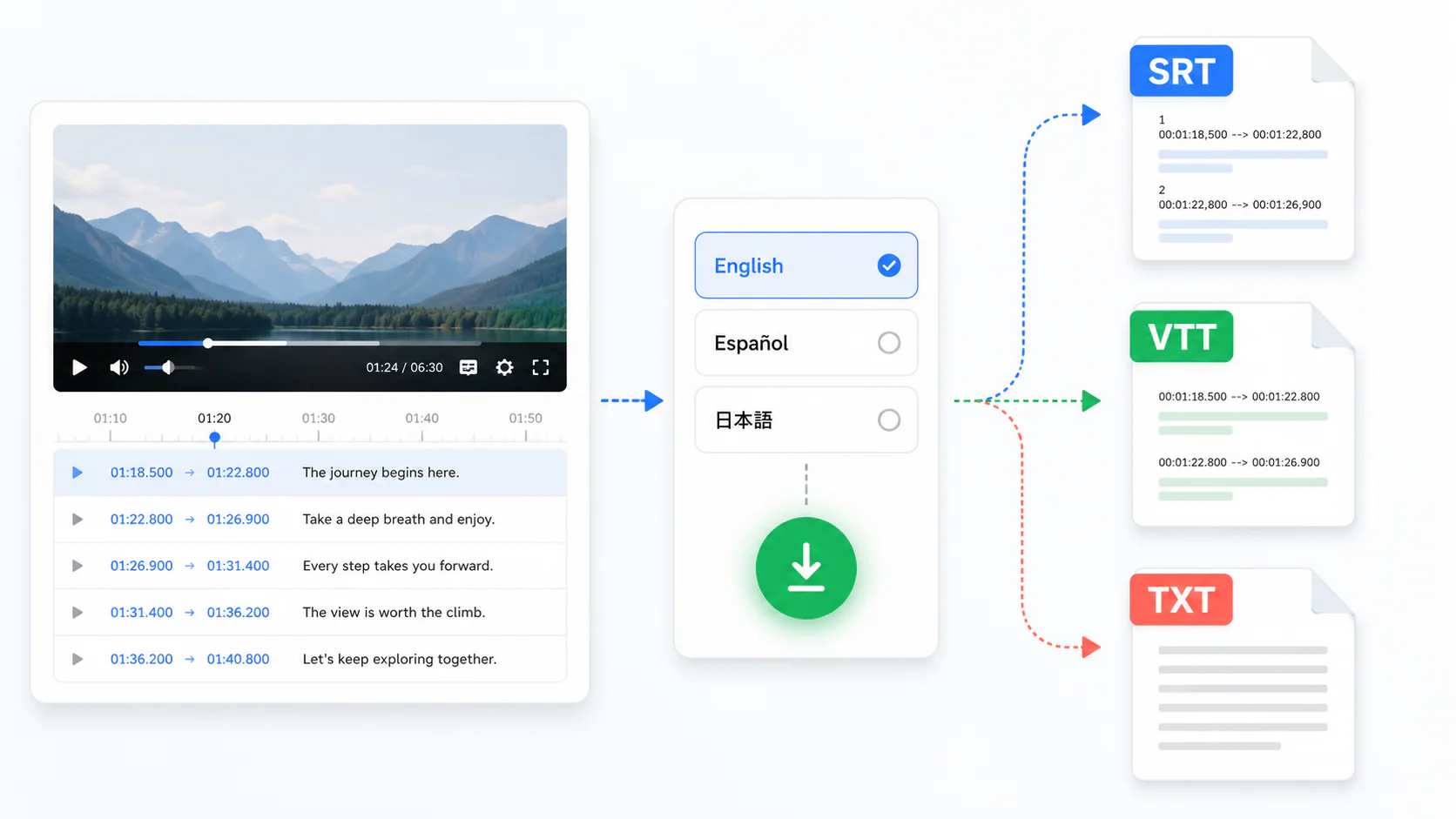
YouTube caption track moving through a language selector into downloadable SRT, VTT, and TXT files
A single available caption track can produce SRT, VTT, and TXT without submitting the video again.

The download result

One YouTube subtitle download, three usable files

The workspace keeps the selected caption track connected to its timing, then prepares the structure required by TXT, SRT, or VTT. You are not copying lines into a document or rebuilding subtitle cues by hand.

Download more than one format from the same successful result. Keep TXT for reading, send SRT to an editor, or use VTT with a compatible web player.

  • 3 successful subtitle results per device each day
  • No sign-up before your first three successful results
  • Failed requests do not use the free allowance
  • Anonymous job history is removed after 24 hours

Why use a downloader

Copying subtitle text is not the same as downloading a subtitle file

Copying visible transcript text may be enough for a quick note, but it can lose cue boundaries, start and end times, language information, and the syntax an editor or player expects.

A YouTube subtitle downloader preserves the available caption track as a usable file. That removes the slowest part of the job: rebuilding timestamps and checking whether every line stayed in order.

How it works

How to download YouTube subtitles

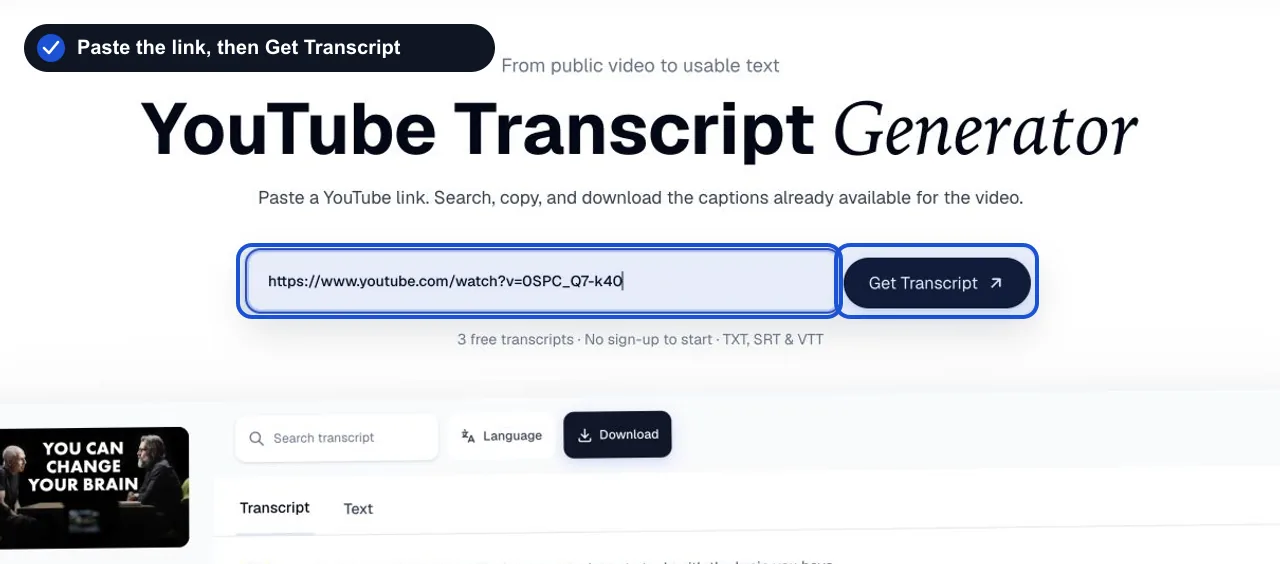
  1. Paste the video link

    Paste the video link

    Paste a YouTube watch link, share link, Short, embed link, live replay link, or 11-character video ID. Then click Get Subtitles to open the workspace.

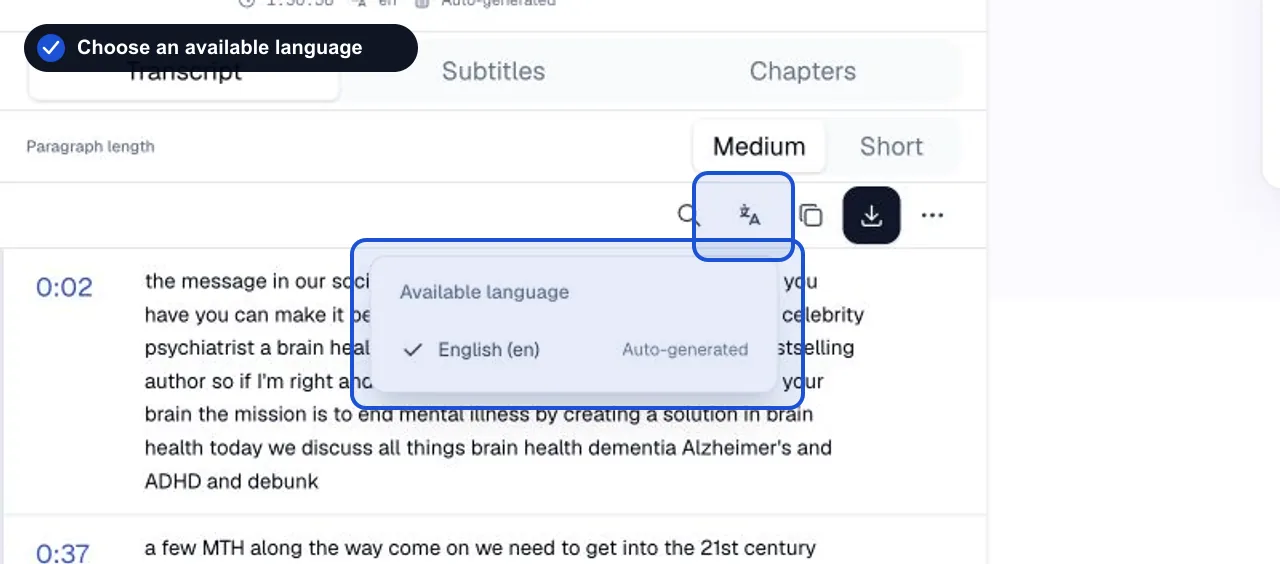
  2. Select a caption language

    Select a caption language

    The workspace lists only the languages that are actually available for your video. Click Language in the toolbar, pick a language from the list, and the transcript updates in place. You are not creating a new translation — you are reading the captions that YouTube already provides.

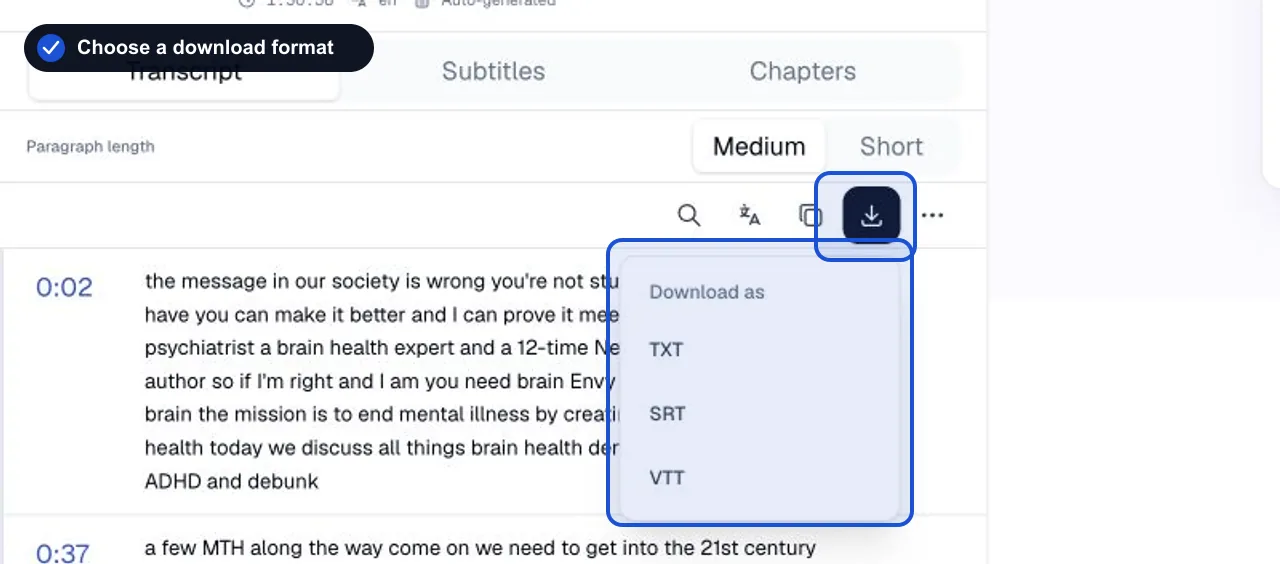
  3. Download the file

    Download the file

    Click Download in the toolbar and choose TXT, SRT, or VTT. The file downloads immediately from within your workspace. You can switch formats and download again without resubmitting the video — one successful result can create all three files. TXT gives you clean text or timestamped lines. SRT and VTT preserve exact cue timing for editors and web players.

Where the files go next

Choose the download for the job in front of you

Start with the destination. The same caption words can serve very different workflows once the file structure changes.

  • Import captions into a video editor

    Download SRT when an editing app or collaborator asks for a conventional timed subtitle file. Check the first, middle, and final cue after import.

  • Add captions to a web player

    Download VTT for an HTML5 or browser-based player that accepts WebVTT. The WEBVTT header and cue syntax are created for you.

  • Read, quote, or search the spoken words

    Download clean TXT when cue code gets in the way, or timestamped TXT when you still need quick reference points.

  • Keep another available language track

    Choose a language supplied by the video and save it separately. The selector does not invent a missing track or present machine translation as an original caption.

Output formats

Download captions from YouTube as SRT, VTT, or TXT

Choose the format that matches your next step. Each format serves a different purpose, and you can download all three from one result without resubmitting the video.

Download captions from YouTube as SRT, VTT, or TXT
FormatBest forTimestampsWhat you receive
TXTReading, notes, and copyOptionalPlain or timestamped text
SRTVideo editors and subtitle uploadYesNumbered subtitle cues
VTTWeb video and caption workflowsYesWebVTT cues with timing

TXT is the default choice for notes and reading. SRT is the most compatible subtitle format for video editing software. VTT is designed for web-based players and modern caption workflows. Timestamps are preserved in SRT and VTT; TXT can include them or remove them for clean paragraphs.

Caption source

Manual and automatically generated captions

The download keeps the exact wording and timing from the captions YouTube provides. The workspace shows whether each video uses manual captions uploaded by the creator or automatic captions generated by YouTube's speech recognition. Automatic captions can mishear names, numbers, accents, and specialist terms, so always check important lines against the video timestamp before using them.

File contents

What each file contains

TXT files include the transcript text with optional readable timestamps, organized by caption segment. Clean TXT removes timestamps for reading, while timestamped TXT keeps them as bracketed labels before each paragraph for easy reference.

SRT files are the standard subtitle format. Each cue has a sequence number, a start and end time in hours:minutes:seconds,milliseconds, and the caption text. This is the format most video editors and subtitle tools expect.

VTT files begin with a WEBVTT header and follow with timing cues. The format supports optional styling and metadata headers, which SRT does not. Use VTT for web players that support the WebVTT standard.

Every file name uses the video title and selected language, so TXT, SRT, and VTT downloads from different videos stay easy to identify.

File preview

A quick look at each file

Below is the same short example shown in each format. The text is illustrative and not copied from a third-party video.

TXT

Welcome to the subtitle download example.
Start your first download in seconds.
Choose SRT, VTT, or TXT as needed.

Clean text with optional timestamps. Best for reading, quoting, and notes.

Download sample TXT

SRT

1
00:00:00,000 --> 00:00:02,500
Welcome to the subtitle download example.

2
00:00:02,500 --> 00:00:05,000
Start your first download in seconds.

3
00:00:05,000 --> 00:00:08,000
Choose SRT, VTT, or TXT as needed.

Standard subtitle format with cue numbers and precise timing. Works with most video editors.

Download sample SRT

VTT

WEBVTT

00:00:00.000 --> 00:00:02.500
Welcome to the subtitle download example.

00:00:02.500 --> 00:00:05.000
Start your first download in seconds.

00:00:05.000 --> 00:00:08.000
Choose SRT, VTT, or TXT as needed.

Web-ready caption format with WEBVTT header. Use for HTML5 players and streaming.

Download sample VTT

Before you download

How to get reliable subtitle downloads

A successful download starts with a few simple checks that take seconds and prevent surprises.

Confirm the video is accessible

Private, removed, restricted, or still-live videos may not provide captions. If no transcript appears, check that the original link opens an accessible YouTube video.

Verify the language and source

The workspace labels whether captions are manual or automatically generated. For important work, check key lines near the beginning, middle, and end of the file.

Choose the right format for your editor

Most video editors accept SRT. If an editor rejects the file, confirm it supports the format you chose. Renaming a VTT file to SRT does not change its structure — download the correct format instead.

Keep the original video URL

Save the original YouTube link alongside your downloaded file so you can recheck wording later. If you edit the text, keep a separate copy and note what you changed.

The honest limits

When subtitles can and cannot be downloaded

A subtitle download is available after captions load successfully for a YouTube video. Private, removed, restricted, still-live, or caption-free videos may not return a file. Failed requests do not use a successful transcript allowance, and anonymous job history is removed after 24 hours.

  • No available captions means no file

    This free retrieval workflow uses caption tracks that YouTube makes available. It does not generate a new transcript for a video with no captions.

  • Automatic captions still need checking

    The file can preserve timing while the underlying words still contain mistakes in names, numbers, accents, or specialist terms.

  • The destination decides compatibility

    SRT and VTT are established formats, but an editor, player, or upload form can impose its own file and encoding requirements.

Questions

YouTube caption and subtitle download questions

How formats, languages, free use, and file handling work.

How do I download YouTube subtitles as SRT?

Paste a YouTube link, wait for the transcript to load, then click Download and choose SRT. The file is created immediately in the workspace.

Is a YouTube caption downloader different from a subtitle downloader?

People often use caption and subtitle for the same timed text on YouTube. This page downloads the caption tracks already available for a video as TXT, SRT, or VTT.

Can I download all three formats from one video?

Yes. After a successful transcript, you can click Download again and choose a different format. Switching between TXT, SRT, and VTT does not resubmit the video or use another transcript allowance.

Which format should I choose?

TXT for readable notes and quoting. SRT for video editors like Premiere Pro, Final Cut, and DaVinci Resolve. VTT for web players and HTML5 captions.

Can I download subtitles in another language?

Yes, when the video provides captions in more than one language. The Language selector in the workspace shows only the languages actually available for that video — it does not list languages that do not exist.

Why are no subtitles available for my video?

The video may be private, removed, restricted, still live-streaming, or published without any captions. A failed attempt does not count toward your free transcript allowance — you can try another video right away.

Are timestamps included in the download?

SRT and VTT always include precise timing. TXT offers a choice: clean text without timestamps for reading, or timestamped text with bracketed time labels for reference.

Does this work with automatically generated captions?

Yes. The workspace labels whether captions are manual or automatic. Automatic captions can contain mistakes in names, numbers, and technical terms, so always verify important lines against the video.

Try it now

Download YouTube subtitles

Paste a YouTube link, choose a language, and download the file you need.

Works with videos that have available captions.